|
PST-HW400B Specifications
|
|
Name
|
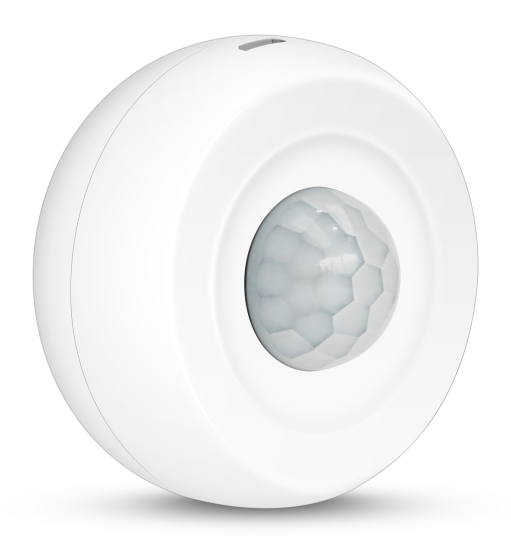
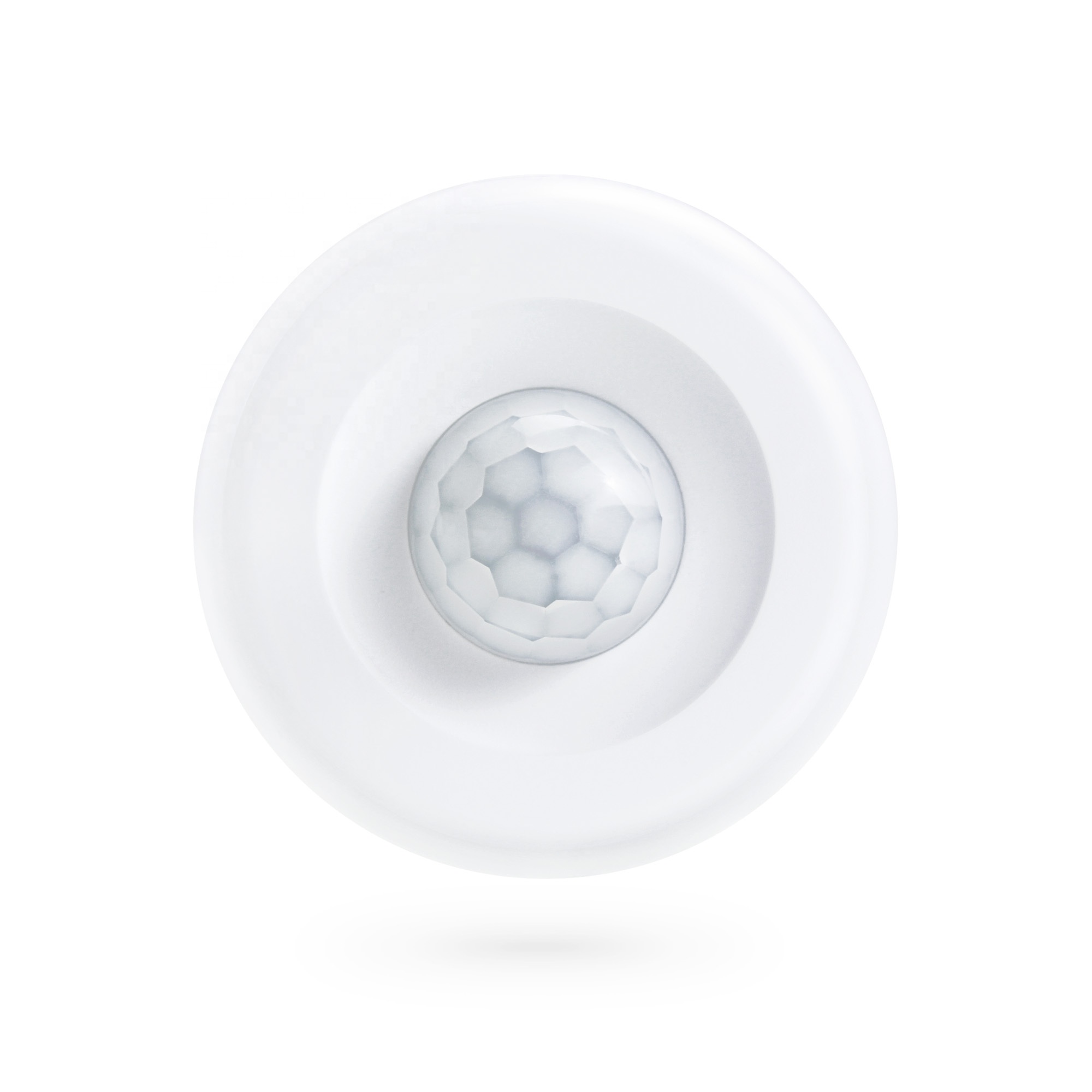
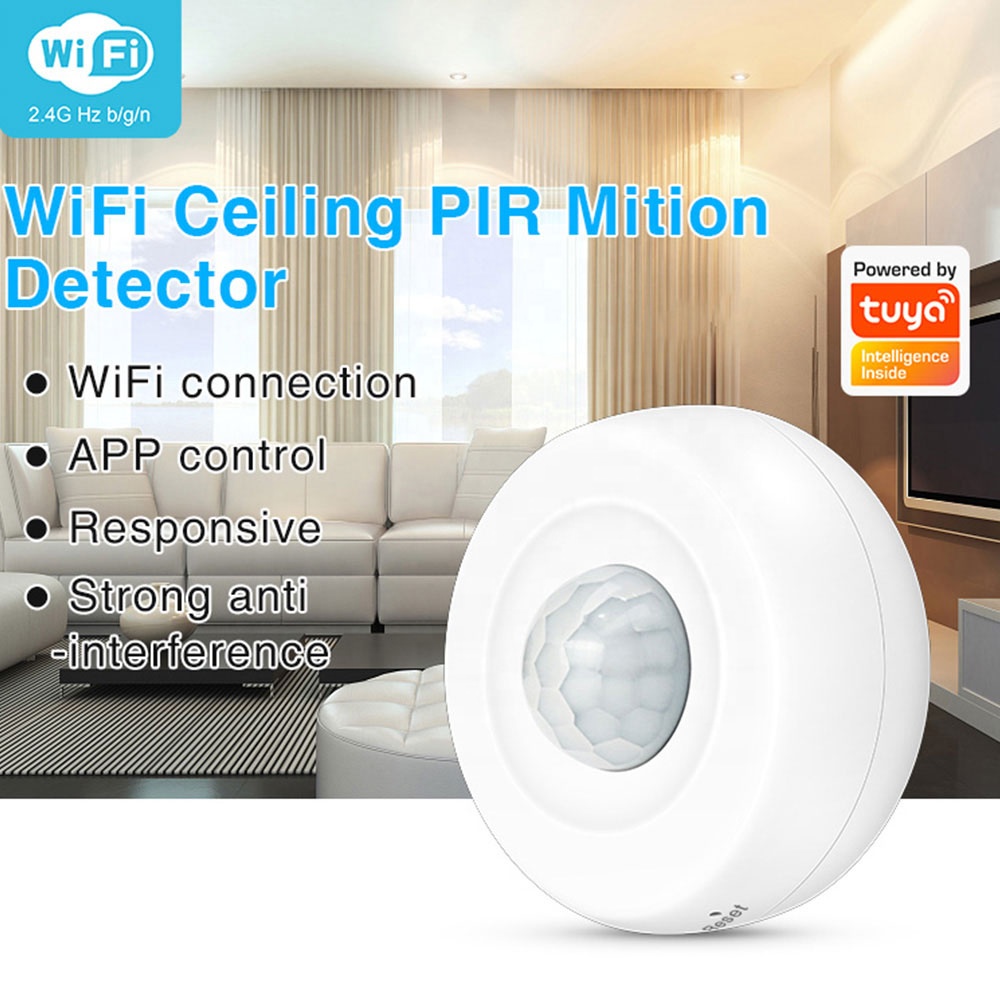
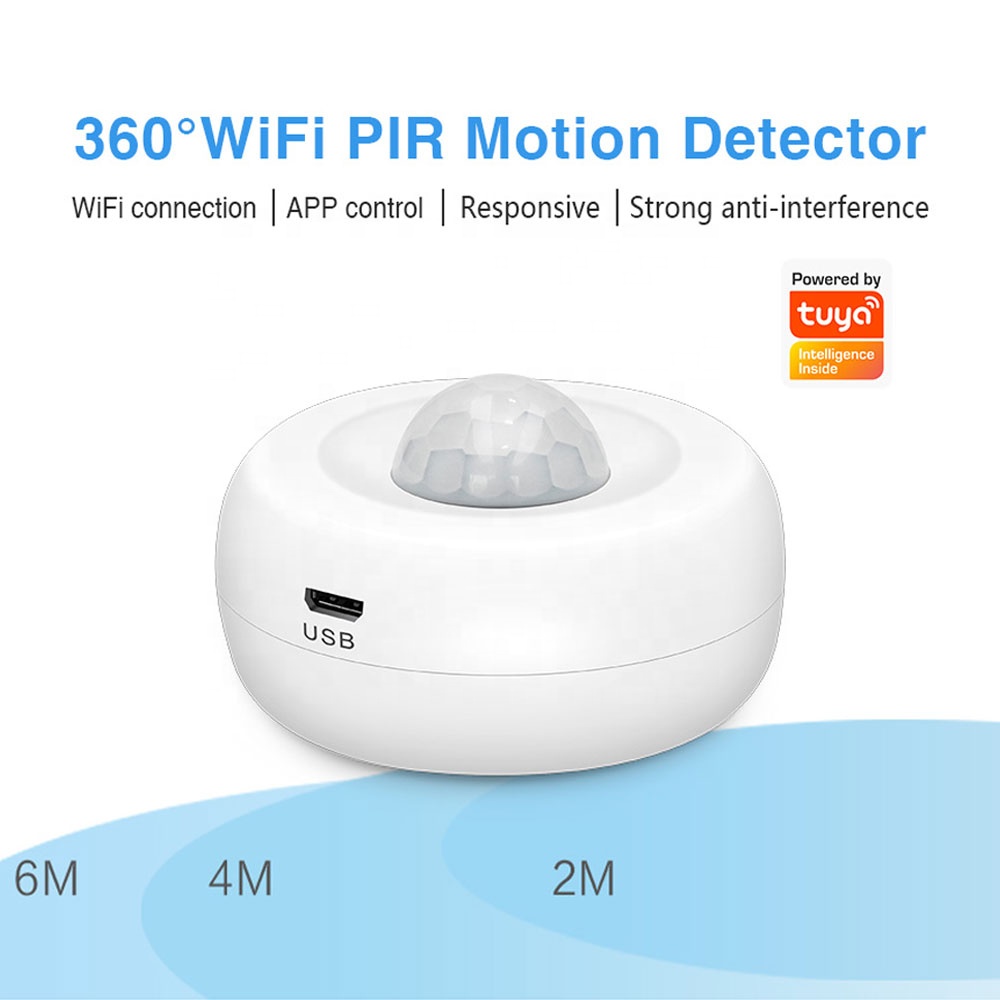
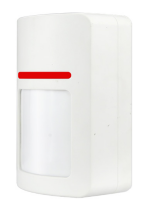
Tuya Smart WiFi Ceiling PIR Sensor
|
|
Model
|
PST-HW400B
|
|
APP Name
|
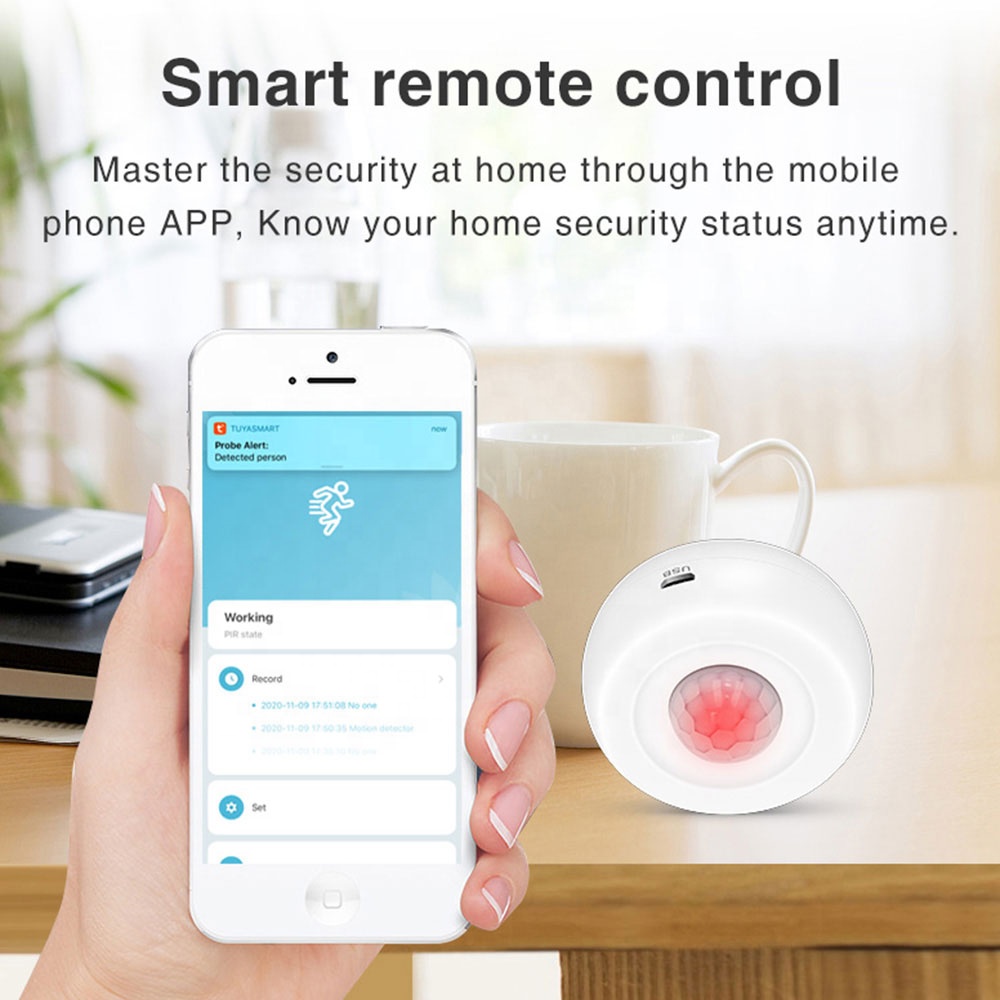
Tuya Smart or Smart Life
|
|
Color
|
White
|
|
Material
|
ABS
|
|
Power
|
DC3V LR03*2 Battery
|
|
USB input
|
DC5V/2A (USB cannot be used with dry battery, only rechargeable battery)
|
|
WiFi Standards
|
IEEE 802.11 b/n/g 2.4G Hz
|
|
PIR sensitivity angle
|
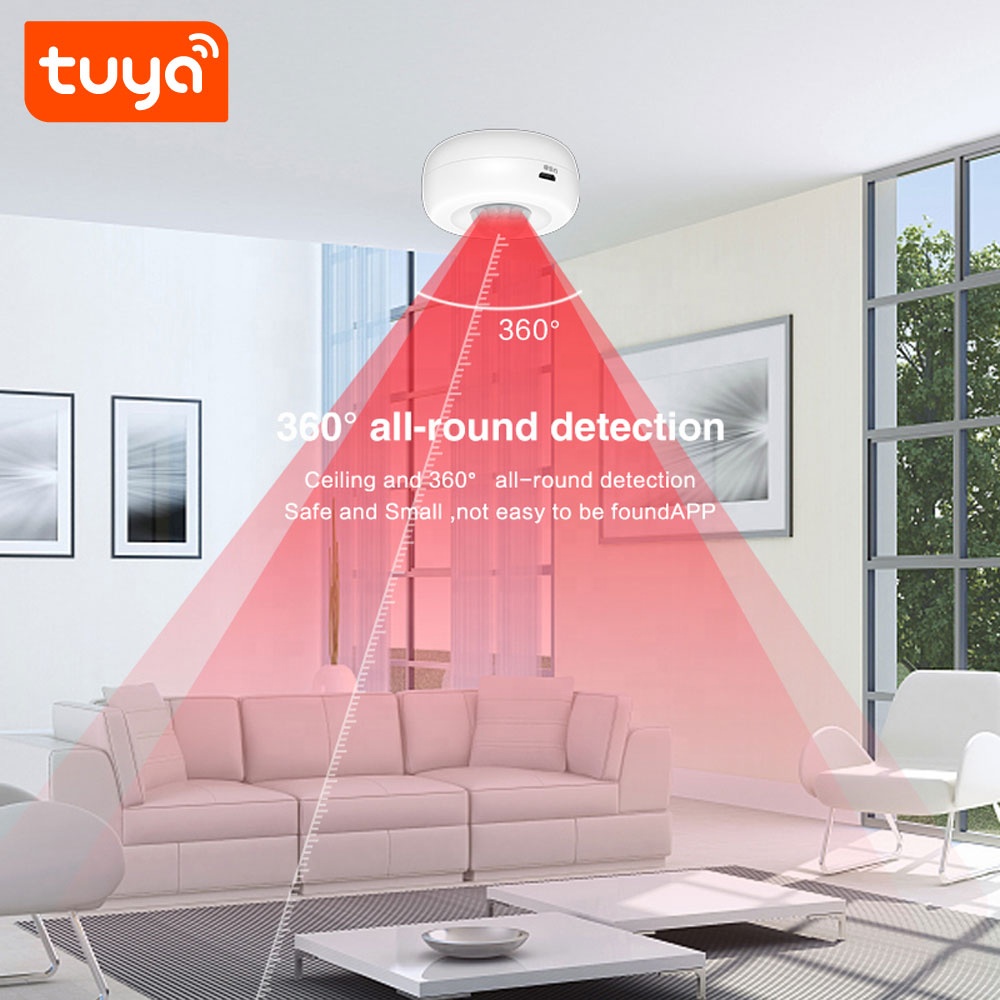
360 degree
|
|
PIR sensitivity distance
|
6m
|
|
Low-battery Detection
|
Support
|
|
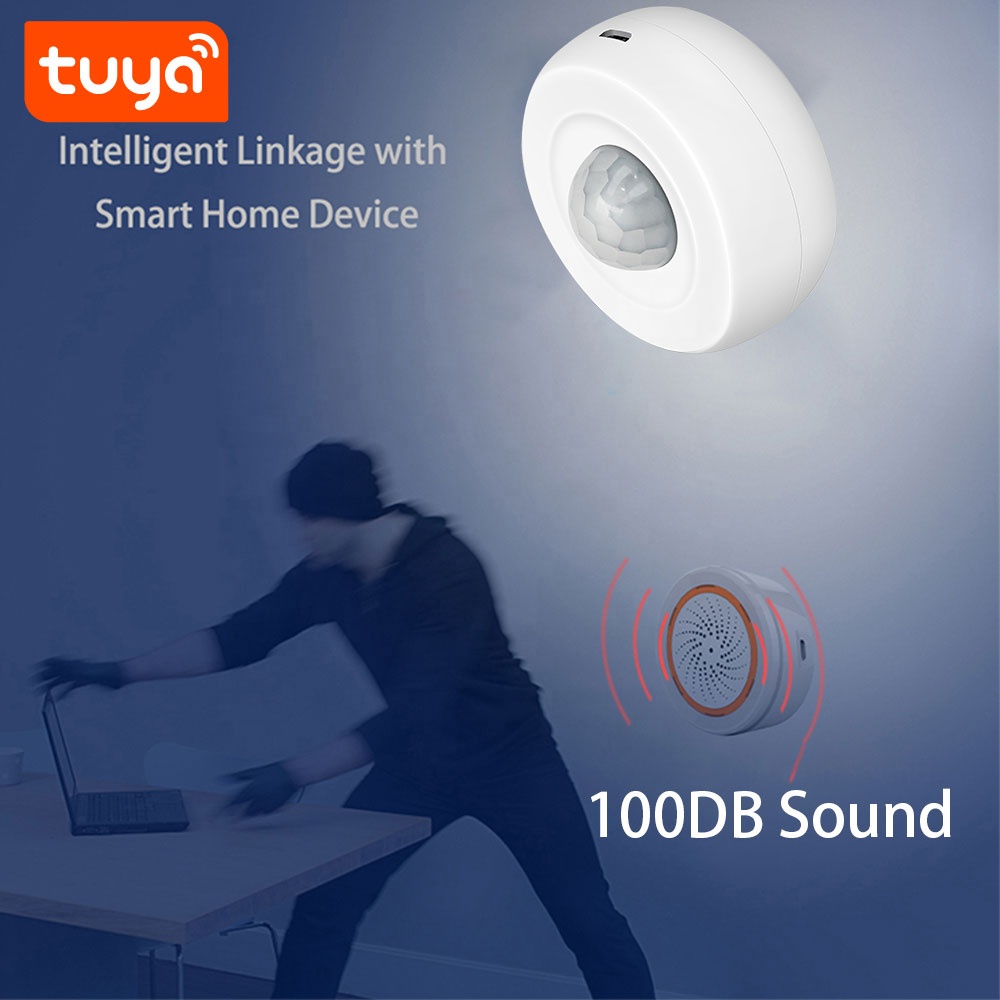
Tuya Smart product Linkage control
|
Support
|
|
Operation Temp.
|
–10°C to +50°C
|
|
Humidity
|
5%–95% non-condensing
|
|
Installation
|
Ceiling-mounted or Wall
|
|
Dimension
|
11.5*6*4.2cm
|
|
Weight
|
80g
|
|
Carton Packing
|
200PCS per carton: 15.5kg, 34*33*46cm
|
|
PST-HW400B Package List
|
|
WiFi PIR Sensor
|
x1
|
|
LR03 battery
|
x2
|
|
Double-sided tape
|
x1
|
|
Installation screws
|
x2
|
|
User Manual
|
x1
|
|
PST-HW400B Product FAQ
|
|
Q1: What is this product?
A: This is a WiFi Ceiling PIR (Passive Infrared) Motion Detector. It can detect motion and is designed for home or office use.
|
|
Q2: Which WiFi frequencies does it support?
A: It supports 2.4G Hz b/g/n WiFi frequencies.
|
|
Q3: How do I connect the sensor to my Wi – Fi network?
A: Download the Tuya Smart app from the app store. Open the app, create an account if you don’t have one. Then, follow the in app instructions to add a new device. Select the Wi – Fi vibration sensor and enter your Wi – Fi password when prompted.
|
|
Q4: What if my Wi – Fi signal is weak near the sensor’s location?
A: You may consider using a Wi – Fi extender or a mesh Wi – Fi system to boost the signal. Ensure that the sensor is within a reasonable range of your router for optimal connectivity.
|
|
Q5: Where should I install this motion detector?
A: It is designed to be installed on the ceiling for optimal motion detection coverage.
|
|
Q6: How does the PIR motion detection work?
A: PIR technology detects changes in infrared radiation emitted by moving objects. When an object with a different temperature than the background moves in its detection range, it triggers the detector.
|
|
Q7: How is the sensor powered?
A: The sensor is powered by 2PCS DC1.5V LR03 ultra alkaline AAA batteries and also can be DC5V USB.
|
|
Q9: How long does the battery last?
A: Battery life depends on usage frequency and sensitivity settings. Under normal usage and default settings, the battery can last approximately 6 months if trigger 10 times a day.
|
|
Q10: What should I do if the sensor doesn’t connect to my Wi-Fi network?
1. Check the Basics
Power: Ensure the sensor is properly powered.
Wi – Fi Signal: Make sure the sensor is within range of your Wi – Fi router.
2. Reset the Sensor
3. Re – add the Device in the App
4. Check Router Settings
5. Update Router and App Firmware
|
|
Q11: How quickly does it respond to motion?
A: It has a fast – response time and can detect motion and send signals within milliseconds.
|
|
Q12: Does the sensor work with voice assistants?
A: It supports Amazon Alexa and Google Assistant.
|
|
Q13. Does it work in the dark?
A: Yes, since it uses infrared technology, it can detect motion regardless of lighting conditions.
|
|
Q14. Which app should I use to control this device?
A: You can use the Tuya – supported app. You can download it from the App Store (for iOS) or Google Play (for Android).
|
|
Q15. Can I control the device remotely?
A: Yes, as long as the device is connected to WiFi and your phone has an internet connection, you can control it remotely through the app.
|
|
Q16. What functions can I perform through the app?
A: You can adjust detection sensitivity, view motion detection history, set up alerts, and manage device settings.
|
|
Q17. The sensor is constantly sending false alerts. How can I fix this?
Lower the sensitivity level in the app. Also, check if there are any sources of constant vibrations near the sensor (e.g.,
appliances) and relocate it if needed.
|
|
Q18. The app can’t find the sensor. What’s wrong?
Ensure the sensor is powered on and in pairing mode. Also, check your phone’s Bluetooth and Wi – Fi settings, and make sure they are turned on.
|
|
Q19. Can someone else access my sensor’s data?
As long as you keep your app account credentials secure, and your Wi – Fi network is protected, it’s very unlikely that others can
access your sensor’s data.
|
|
Q20. What if the device stops detecting motion?
A: Check the detection settings in the app, make sure there are no obstructions in the detection area, and verify that the device is powered on and connected to WiFi.
|





Reviews
There are no reviews yet.